How to set up SSO (SAML connection)
TroubleshootingHow to set up SAML authentication (SSO)
HireRoo supports SSO (Single Sign-On) via SAML 2.0 to enhance security. Enabling SSO allows you to securely access HireRoo through your Identity Provider (IdP).
Available Plans This feature is available on the Enterprise Plan.
Setup Flow
The setup process consists of 3 steps:
- IdP side configuration
- HireRoo side configuration
- SSO configuration verification
1. IdP side configuration
Configure SAML 2.0 on your Identity Provider (IdP). It should work with any general IdP that supports SAML 2.0, but please refer to each service's documentation for specific setup instructions.
If you are using Okta, please refer to the following article for configuration:
2. HireRoo side configuration
After completing the IdP side configuration, register the connection information in the HireRoo administration screen.
Required Information
Obtain the following three pieces of information from your IdP:
- IdP Endpoint URL (SSO URL)
- IdP Entity ID (Issuer)
- Public Key Certificate (X.509 Certificate)
Setup Procedure
- From the "Company Settings" menu in HireRoo, open "Security".
- Enter the three pieces of information obtained above into the input form.
- Next, configure "Target Domain" and "Forced Mode".
About Additional Settings
- Target Domain
- Specify the email domains for which SSO will be applied.
- (Example) If the email address is
kosuke.kuzuoka@hireroo.io, the domain ishireroo.io. - During sign-in, if the entered email address matches this domain, the user will be automatically redirected to the IdP authentication screen.
- Forced Mode
- When enabled, users with the specified domain will not be able to access HireRoo except through the configured IdP (excluding administrators). This is effective for strengthening your security policy.
3. Verify SSO configuration
After saving the settings, follow the steps below to confirm that it works correctly.
- From the icon in the upper right corner of the screen, sign out once.
- On the sign-in screen, click the "Sign in with SSO (Single Sign-On)" button.
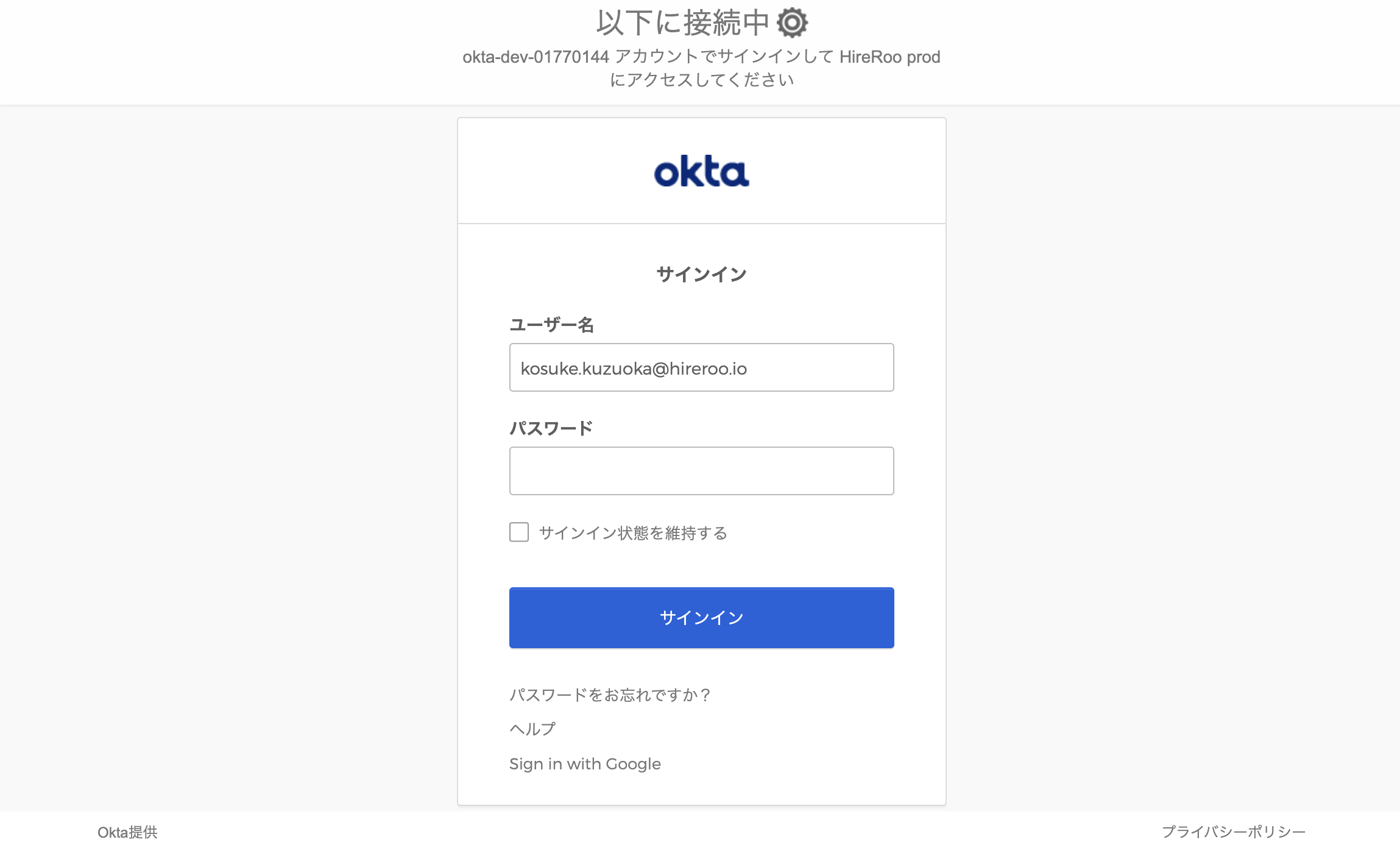
- An email address input screen will appear. Enter an email address (e.g.,
user@hireroo.io) that includes the target domain and click the "Sign in" button. - If you are redirected to the authentication screen of the configured IdP (such as Okta), the settings are correct.